Sending Your First File with ZapFile: A Screenshot Walkthrough
Most of our guides compare tools or explain concepts. This one does neither — it just walks you through sending your first file, with a screenshot of every screen you'll actually see. If you've never used ZapFile (or any browser-based transfer tool), this is the two minutes of orientation that makes everything else obvious.
What you need: a browser. That's the complete list. No account, no app, no extension — either side of the transfer.
Step 1: Open the Site
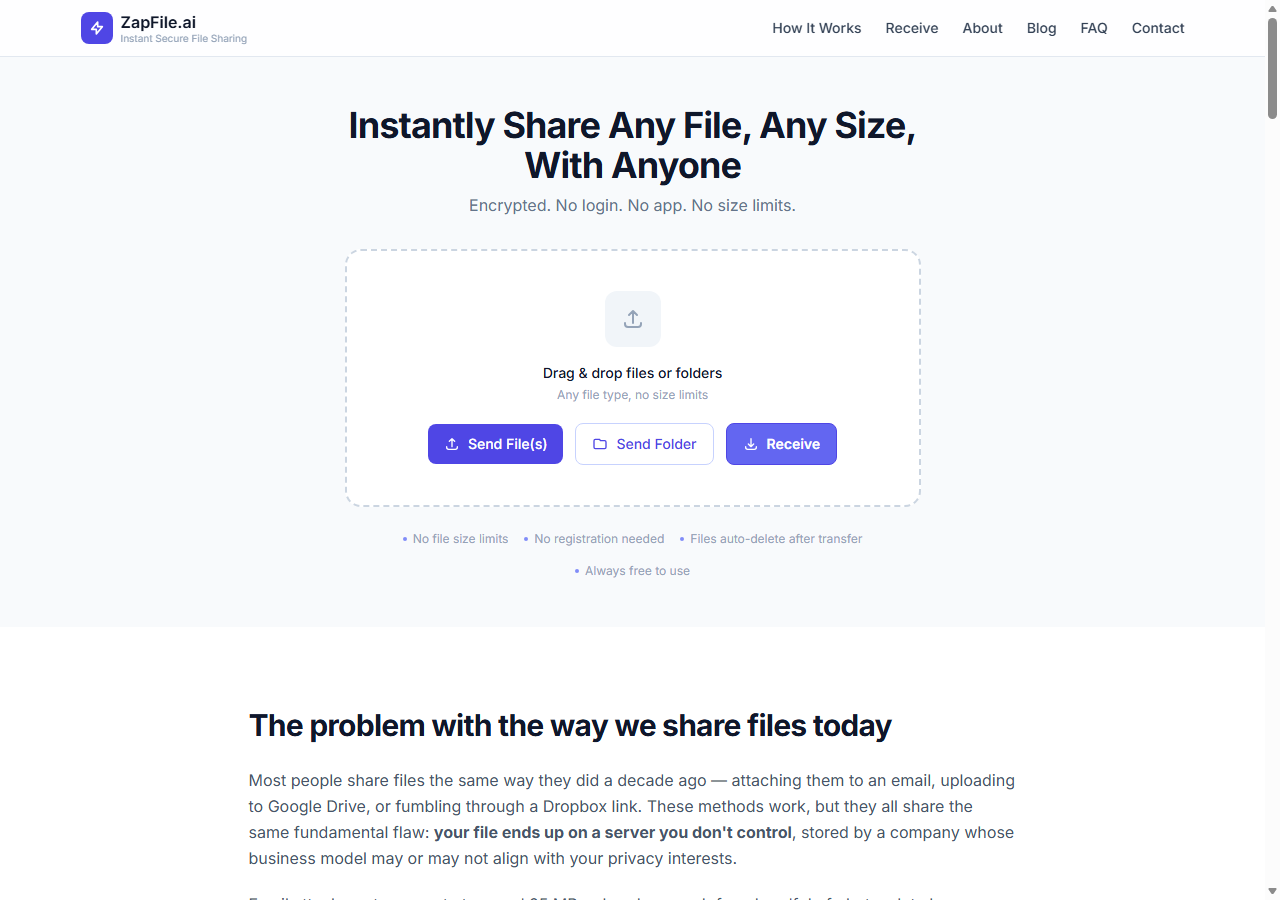
Go to zapfile.ai. This is the whole interface:
Three buttons, one dotted box. Send File(s) opens a file picker; Send Folder lets you pick an entire folder (subfolders included — they arrive with their structure intact); Receive is for the other end, which we'll get to. On a desktop you can skip the buttons entirely and just drag files or folders anywhere onto the dotted area.
Step 2: Add Your Files
Pick one file or fifty; mix documents, videos, whatever — there's no file-type restriction and no size cap. As you add files they appear in a list inside the box, with a running total, an option to add more files or folders, and a Clear link if you change your mind.
Nothing has left your device yet at this point — you're just building the list.
Step 3: Share and Get Your Code
Hit the share button and the upload starts. When it finishes you get two ways to hand the files over:
- A 5-digit code — short enough to read out loud on a phone call or type into a text message
- A link — for when copy-paste is more natural, like a Slack or email conversation
Both point to the same transfer. Which one to use is purely about the situation: talking to someone? Say the code. Typing to someone? Send the link. (Curious why a 5-digit code can "carry" a 10GB file? It doesn't — here's how the code actually works.)
Step 4: The Other Person Receives
Your recipient goes to zapfile.ai/receive — or just clicks Receive on the homepage. This is what they see:
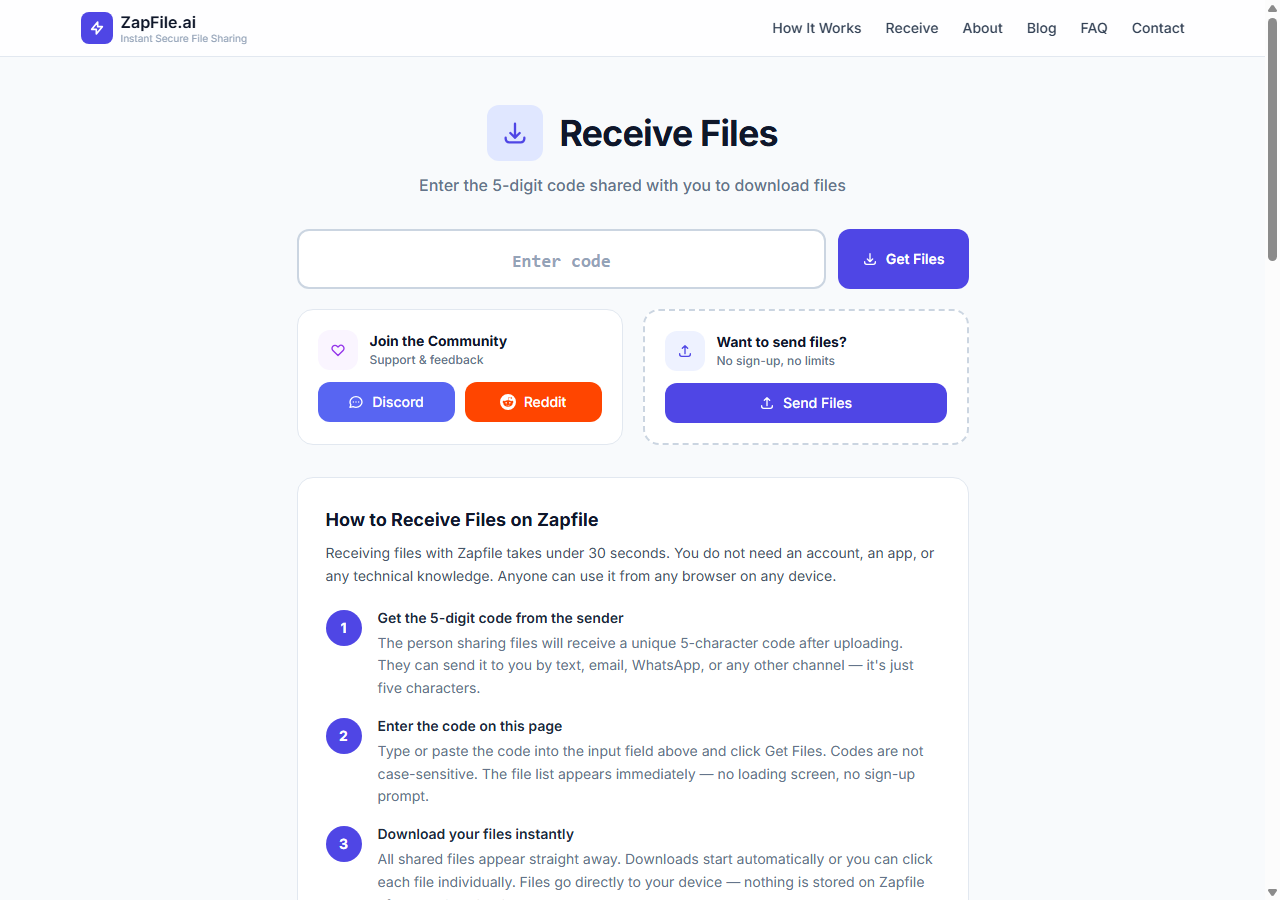
They type the five digits, hit Get Files, and the file list appears immediately — no loading screen, no sign-up prompt. Individual files download with a click, and multi-file or folder transfers offer a "download all" option that preserves the folder structure. If you sent them a link instead of the code, clicking it lands them on this same screen with the code already filled in.
On a Phone, It's the Same Thing
There's no app to install because the site is the app — the mobile browser gets the identical flow, just stacked vertically:
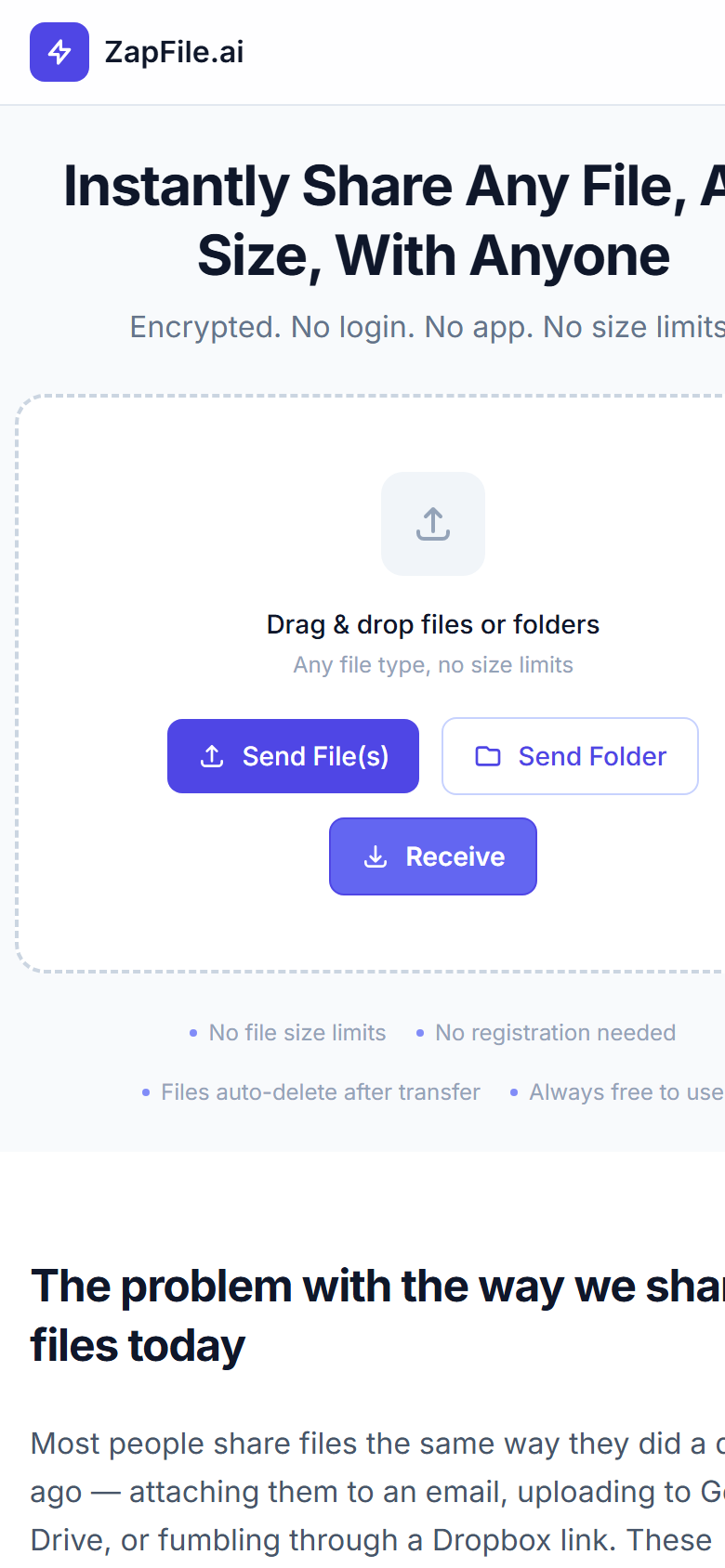
The one mobile-specific tip: when sending photos, your phone's file picker may offer both the Photos gallery and the file system — either works, and nothing gets compressed on the way through, which is the main reason people stop sending photos through chat apps.
What Happens Afterwards
Transfers are deliberately short-lived: once the transfer window passes, the files are deleted from storage automatically and the code stops working. There's no cleanup step because there's nothing to clean up — no account dashboard full of old uploads, no lingering server copies. If you need to send the same files again next week, you upload them again and get a new code.
That expiry is a feature, not a limitation — but it does mean this isn't cloud storage. If your recipient can't download until Thursday, a tool with multi-day availability is the better fit; we compared the options honestly in WeTransfer vs PairDrop vs ZapFile.
First-Timer Questions, Quickly
Do we both need to be online at the same time? Roughly, yes — this is built for the live handoff. Upload, share the code, and have them grab it while the transfer window is open. For a "download it whenever" workflow, use a tool with multi-day links instead.
Is there really no size limit? There's no cap on file size or type. Practically, your upload speed is the limit: a 2GB video on ordinary home internet takes a few minutes to upload, and the recipient's download starts from fast storage after that.
Can more than one person receive it? Anyone with the code or link can download while the transfer is active, so sending to a small group is just sharing the same code in the group chat.
Which browsers work? Anything modern — Chrome, Safari, Firefox, Edge, Samsung Internet, on any operating system. The only feature with a browser caveat is folder download-to-disk, which is Chromium-only; other browsers get the zip fallback automatically.
What if I typo the code? Nothing dramatic — an invalid code just says no transfer found. Codes are single-use per transfer and stop working entirely once the transfer expires.
The Whole Flow, Recapped
- Open zapfile.ai → drag files in (or Send File(s) / Send Folder)
- Share → a 5-digit code and a link appear
- Tell the other person the code (or send the link)
- They enter it at zapfile.ai/receive → files download
First time through, with reading, it's about two minutes. Every time after that, it's about twenty seconds.
Also readHow to Send Files Without Creating a Login →Tags

Tanuja Chinthati is the Content and Marketing Lead at ZapFile, based in Ontario, Canada. With a background in Electronics and Communication Engineering, she writes about privacy-first file sharing, secure data transfer, and digital privacy — making complex security concepts accessible to everyday users.
View all articles →