Transfer Files from PC to Phone Without a USB Cable: Wireless Methods That Actually Work
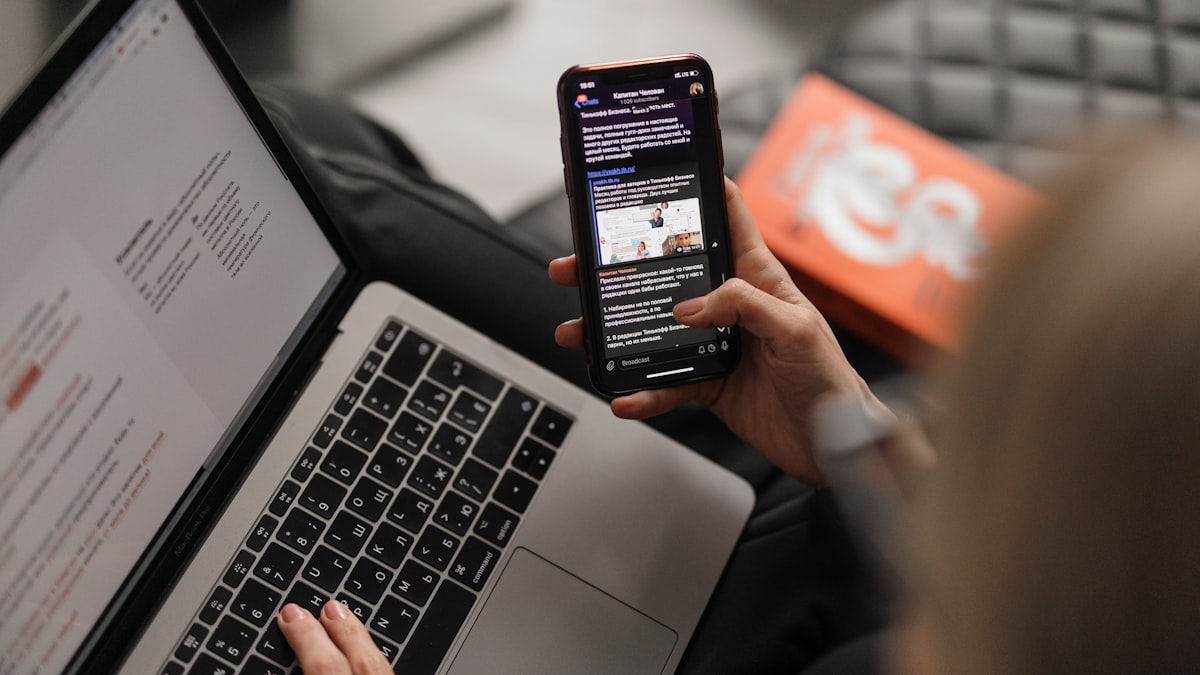
The USB cable is the default answer to PC-to-phone file transfer that most people reach for without thinking. But cables break, get left at home, only work with matching ports, require drivers that sometimes refuse to install, and are completely useless when your PC and phone are in different locations. Wireless transfer from PC to phone has matured to the point where it is faster, simpler, and more reliable than the cable in most real-world scenarios. Here is every method worth knowing, matched to the situation you are actually in.
Method 1: Browser-Based Transfer — Works From Anywhere, Any Combination
The cleanest wireless solution for PC-to-phone transfer when both devices have internet access — whether on the same network or different ones entirely. Open zapfile.ai in your PC browser, drop the file, copy the link. Open that link on your phone browser. Download starts immediately.
No app installation on either device. No account. No size limit imposed by the service. Works from any PC — Windows, Mac, Linux, Chromebook — to any phone — Android, iPhone — regardless of whether they share a network. The file travels as encrypted packets, purged immediately after delivery. Nothing stored on any server at any point.
This is the right method when you need to move a file from your work PC to your personal phone, when your PC and phone are on different networks, when you do not have a cable available, or when you regularly send files to multiple different phones and do not want to manage cable compatibility across them all.
Method 2: Local Network Transfer — Fastest When Same WiFi
When PC and phone are on the same WiFi network, local transfer tools move files at full network speed — typically 50–400 Mbps — with no internet involvement whatsoever. This is faster than cloud upload-and-download and transfers nothing to external servers.
PairDrop is the browser-based option that requires no installation on either device. Open pairDrop.net on both PC and phone browser while on the same WiFi. They find each other automatically. Useful if you are on a machine where you cannot install software — a work computer, a shared machine, or just a situation where you want zero installation.
Windows 11 also includes Nearby Share for Android built-in — Settings → System → Nearby Share. This uses Bluetooth and WiFi to transfer files between a Windows PC and Android phone without any third-party tool (Google's Nearby Share documentation covers setup for the Android side). Does not work with iPhone.
Method 3: Cloud Storage Sync — Convenient for Ongoing Access
Google Drive, OneDrive, and Dropbox all sync files automatically between PC and phone when their respective apps are installed on both devices. Save a file to the synced folder on your PC, it appears on your phone within minutes. No manual transfer step required once set up.
This is the right method for files you regularly need across both devices — documents you edit on PC and reference on phone, photos you want accessible everywhere. It is the wrong method for one-time transfers, large files that would consume significant storage quota, or files you do not want sitting permanently in cloud storage.
Related guideSend Photos from iPhone to Windows Without iTunes→The iPhone-Specific Problem on Windows
Wireless transfer from Windows PC to iPhone has no clean built-in solution. Apple does not provide a native Windows file transfer tool that handles general files. iTunes handles media. iCloud Drive syncs files but requires iCloud setup on both ends and consumes iCloud storage quota.
The cleanest solution: zapfile.ai in the PC browser, link opened in Safari on iPhone. Works for any file type, any size, no Apple infrastructure required. This is the one wireless PC-to-iPhone method that does not require installing iTunes, setting up iCloud, or dealing with Apple's Windows software — which has historically been unreliable and slow.
Also readHow to Fix Android to iPhone File Transfer Issues →Choosing the Right Method
| Situation | Best method |
|---|---|
| Different networks or locations | Zapfile |
| Same WiFi, no install possible | PairDrop (browser) |
| Windows PC to Android, nearby | Nearby Share (Windows 11) |
| Files needed regularly on both devices | Cloud sync (Drive/OneDrive) |
| Windows PC to iPhone, any file type | Zapfile |
The cable is still the right tool when you are transferring a 50GB archive, have no internet access, or need maximum raw speed regardless of setup time. For everything else — which covers most real-world PC-to-phone transfers — the wireless options above are faster in practice once you include the time to find, connect, and troubleshoot the cable. A wireless transfer that works in 4 steps beats a cable transfer that needs 10 minutes of driver debugging every time.
Also readWhatsApp File Sending Issues: Why Files Fail and How to Fix →
Going the Other Way: Phone to PC
Every method above works identically in reverse, and the phone-to-PC direction is where wireless matters even more — photos, videos, and recordings pile up on phones, and the cable-plus-file-explorer ritual is exactly what people want to avoid. Browser-based transfer is the same four steps: open the transfer page on the phone, select files (or share directly from your gallery via the Share menu), get the code, enter it on the PC. Local network tools like LocalSend and PairDrop are direction-agnostic — either device can initiate.
Two additional phone-to-PC options worth knowing. Email to yourself works for a single small document — under 25MB, no setup — but compresses photos on some clients and clutters your inbox; treat it as the method of last resort, not a workflow. Cloud auto-sync (Google Photos, OneDrive camera roll) is genuinely convenient for a continuous photo backup, but it is not "instant": sync delays of minutes to hours are normal, and you are creating permanent cloud copies of everything as a side effect. For a specific file needed on the PC right now, a direct transfer beats waiting for sync.
Troubleshooting Common Wireless Transfer Issues
Transfer is slow despite being on the same WiFi: Both devices must be on the 5GHz WiFi band for maximum speed. Most home routers broadcast both 2.4GHz and 5GHz under the same network name. If a device connects to 2.4GHz, speeds cap around 20 Mbps regardless of your internet plan. In your phone's WiFi settings, look for a "5GHz" version of your network name and connect to that explicitly. On Windows, check Network Adapter Settings to confirm your PC is also on the 5GHz band.
The phone does not appear in Windows for network sharing: This is almost always a firewall issue. Windows may be blocking the phone's discovery packets. Set the network profile to "Private" in Windows Settings → Network → Properties. Also ensure "Network Discovery" and "File and Printer Sharing" are turned on under Control Panel → Network and Sharing Center → Advanced sharing settings.
Zapfile transfer works but speed is slow: If your internet upload speed is limited — under 10 Mbps is common on many home plans — large files will transfer at that speed. A 1GB file on a 5 Mbps upload line takes roughly 27 minutes. For large files on slow internet, local network methods such as network sharing or a tool like LocalSend are faster because they stay on your local network and do not route through the internet.
Files transferred but cannot be found on the phone: Android saves files to different folders depending on which app downloaded them. Use your phone's Files app and search by filename — it will locate the file regardless of which subfolder it was saved to.
Security Considerations for Wireless Transfers
Wireless transfers that stay on your local network are only as secure as your WiFi network. Anyone connected to the same network can potentially access open network shares. For home networks this is rarely a concern. For office, hotel, or public WiFi, do not use local network share methods without password protection — use an encrypted internet-based method instead.
Internet-based methods like Zapfile encrypt data in transit using TLS, which makes the transfer secure regardless of what network you are on. This is the safer choice for public WiFi or any network you do not control.
Setting Up for Frequent PC-to-Phone Transfers
If you regularly move files between the same PC and phone, the one-time setup investment of a local network share pays off quickly. On Windows, right-click a frequently-used folder → Properties → Sharing → Share → add your account or set a password → Share. On Android, install a file manager that supports SMB network shares such as Solid Explorer or Files by Google. Once configured, transferring files is as fast as copying between two folders — no codes, no browser, no upload.
For occasional transfers or transfers to a phone you have not set up a share with, Zapfile requires no prior configuration on either end. Open a browser, go to zapfile.ai, and transfer. Having both methods available covers the full range of situations: fast local transfers for routine file moves, and browser-based transfer as a reliable fallback when the local setup is not accessible or when transferring to a device you do not regularly sync with.
Tags

Tanuja Chinthati is the Content and Marketing Lead at ZapFile, based in Ontario, Canada. With a background in Electronics and Communication Engineering, she writes about privacy-first file sharing, secure data transfer, and digital privacy — making complex security concepts accessible to everyday users.
View all articles →