How to Fix Android to iPhone File Transfer Issues: A Diagnosis Guide
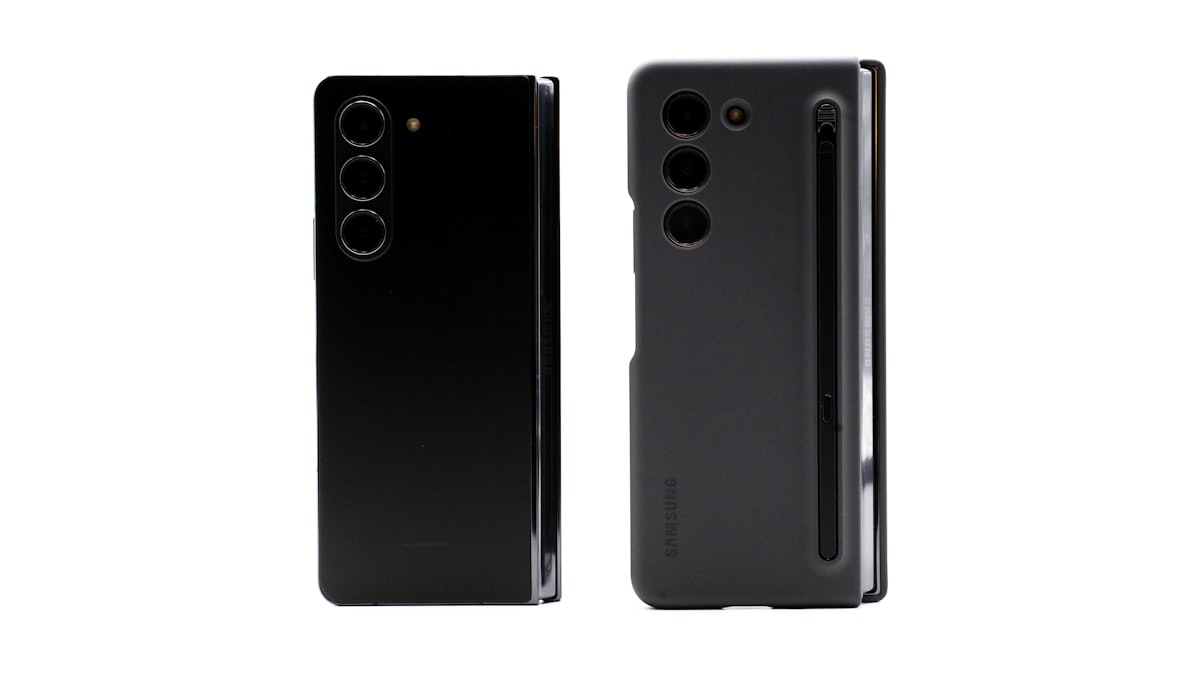
Android-to-iPhone file transfer fails in very specific, predictable ways. The frustrating part isn't that it's hard — it's that the failure modes aren't obvious, and the "fixes" you find online often address the wrong problem. This guide diagnoses the actual issue first, then gives you the real fix.
Problem 1: AirDrop Doesn't Show the Android Device
What's happening: AirDrop is Apple-only. It uses a combination of Bluetooth and WiFi Direct to transfer between Apple devices. Android devices are invisible to AirDrop by design — this is not a setting you can change, on either device.
The fix: AirDrop is not the tool for this job. Use a browser-based alternative instead:
- Same WiFi network → open pAirDrop.net on both devices. They find each other automatically.
- Different locations → use Zapfile. Open in Chrome on Android, open the link in Safari on iPhone.
Problem 2: Bluetooth Pairing Works But No Files Transfer
What's happening: Apple removed OBEX (Object Exchange) — the Bluetooth file transfer protocol — from iOS years ago. iPhones can pair with Android devices via Bluetooth for audio purposes, but file transfer over Bluetooth between Android and iPhone is simply not supported. The pairing succeeds; the file transfer fails because iPhone doesn't implement the file transfer profile.
The fix: Bluetooth file transfer between Android and iPhone is not fixable because it's not a bug — it's a missing feature on iPhone. Use WiFi-based transfer instead (Zapfile, PAirDrop, WeTransfer).
Problem 3: File Transfers But Won't Open on iPhone
What's happening: The file transferred successfully but the iPhone doesn't have an app that can open the format. Common culprits:
- .apk files — Android app installers. iOS cannot run Android apps. There is no fix; these files simply don't work on iPhone.
- .mkv video files — iPhone's native video player doesn't support MKV containers. Use VLC for iOS (free) to open them, or convert to MP4 before transferring.
- .ogg or .flac audio — iOS has limited native support. VLC handles these too.
- Google Docs/Sheets formats (.gdoc, .gsheet) — These are links, not actual files. Open them in a browser, not a file manager.
The fix: Install VLC on the iPhone for unsupported media formats. For document formats, confirm the file is a standard format (PDF, .docx, .xlsx) rather than a cloud link file.
Also readTransfer ZIP Files from Android to iPhone →Problem 4: WhatsApp File Arrives Heavily Compressed
What's happening: WhatsApp compresses photos and videos before transfer — this is intentional, not a bug. Photos get resampled to roughly 1600px max and JPEG-compressed. Videos get re-encoded to 720p at around 960 kbps.
The fix: Use WhatsApp's Document sharing option instead of the photo/video option. In WhatsApp: tap the attachment paperclip → Document → select the file. This sends the file as an attachment without compression, regardless of type. A photo sent as a Document arrives at original resolution. A video sent as a Document arrives uncompressed.
Alternatively, use Zapfile for any file where quality matters — zero compression, exact original file.
Problem 5: Google Drive Link Opens But Says "Access Denied" on iPhone
What's happening: The Drive link was shared as "Restricted" (only specific people with access can view) and the iPhone user isn't signed into the Google account that has access. Or the link was shared correctly but they're signed into a different Google account on their iPhone.
The fix:
- Check the sharing settings on the file — make sure the recipient's specific email address is added, not just an open link
- Ask them to open the link in a browser (Safari or Chrome) while signed into the correct Google account
- Or change the link to "Anyone with the link can view" if the file isn't sensitive
Problem 6: Transfer Starts but Drops Mid-Way
What's happening: Usually a connectivity issue — WiFi drops, mobile data switches in, or the browser tab goes to background (iOS aggressively suspends background browser activity).
The fix for browser-based transfers:
- Keep the screen on during transfer — prevent auto-lock
- Keep the browser tab in the foreground on iPhone specifically — Safari suspends background tabs
- Use WiFi rather than mobile data for large files
- If a large file keeps dropping, try sending in smaller batches (zip the files into multiple smaller archives)
Problem 7: Email Attachment Bounced or Never Arrived
What's happening: The file exceeded the email attachment limit (typically 25MB for Gmail, 20MB for Outlook), or the file sharing link in the email was caught by a spam filter.
The fix: For files over 25MB, email is the wrong tool. Use Zapfile for immediate delivery or WeTransfer for async. Send the link via text/WhatsApp instead of email if spam filtering is the issue — messaging apps don't filter file sharing links the way email does.
 Also readHigh-Speed WiFi File Sharing: Android to iPhone →
The Universal Fallback
If you've hit a specific issue that none of the above covers, the universal fallback that bypasses virtually all Android-iPhone compatibility problems is browser-based transfer. Both phones have browsers. Both browsers support the same web standards. Zapfile works identically on Chrome for Android and Safari for iPhone — no ecosystem differences, no format incompatibilities, no pairing required. When everything else fails, open a browser.
The Fallback, Step by Step
On the Android phone: open the browser, go to zapfile.ai, tap to select the files (or share them to the browser from your gallery), and wait for the 5-digit code to appear. On the iPhone: open Safari, go to the receive page, type in the code, and download. That's the whole procedure — no pairing, no app installs, no accounts on either phone, and it works the same whether the two phones are next to each other or in different countries.
Two details worth knowing about what arrives. First, quality: the file is transferred as-is, byte for byte — a 12MP photo lands as a 12MP photo, not the recompressed version a messaging app would deliver. Second, format: the transfer doesn't convert anything, so if you send a format iPhones can't open natively (see Problem 3 above), it still won't open — transfer and compatibility are separate problems. And for large files, there is no size cap on the transfer itself; a multi-gigabyte video works the same as a small PDF, limited only by your connection speed.
The reason this method sidesteps every problem in this guide is architectural: all the failure modes above come from device-to-device protocols (Bluetooth, AirDrop) or account-gated services (Google Drive, email) that were never designed to bridge the two ecosystems. The browser is the one runtime both phones implement identically — so a transfer that lives entirely in the browser has no ecosystem boundary to trip over.
Tags

Tanuja Chinthati is the Content and Marketing Lead at ZapFile, based in Ontario, Canada. With a background in Electronics and Communication Engineering, she writes about privacy-first file sharing, secure data transfer, and digital privacy — making complex security concepts accessible to everyday users.
View all articles →