How to Move High-Resolution Photos from Samsung Galaxy to iPhone: No Compression Guide
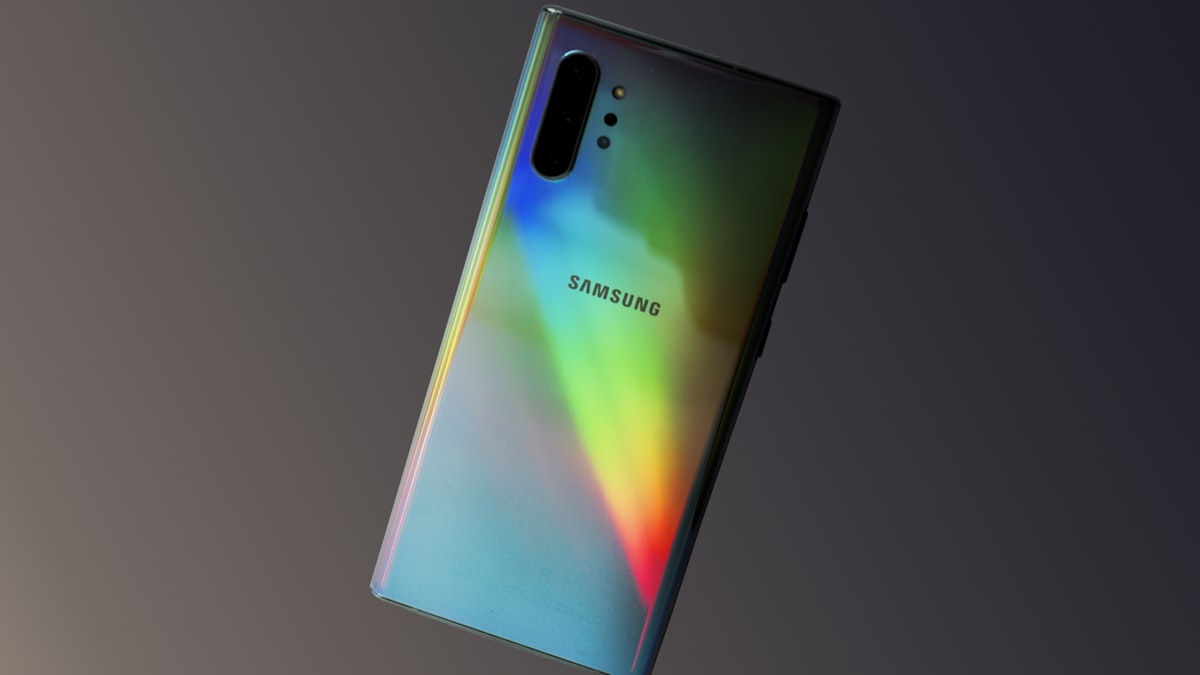
Samsung Galaxy phones are famous for their incredible cameras, but all that quality is wasted if you share them via methods that compress the files into blurry messes. When you want to move your photos to an iPhone, you want the original 50MP or 100MP clarity, not a downscaled version. Here is how to achieve bit-perfect photo transfers in 2026.
The Problem with "Sharing" via Social Apps
A realistic scenario: 200 photos totalling approximately 1.2GB, mixed Samsung camera shots (12MP JPEG, roughly 4–6MB each). Home WiFi at 100 Mbps upload / 200 Mbps download. This represents a "last month's photos" batch — realistic for someone sharing holiday photos or doing a partial library migration.
Also readTransfer Photos from Android to iPhone Without Compression →Method 1: PAirDrop (Same WiFi) — Fastest Overall
Estimated time for 1.2GB: 60–90 seconds
Quality preserved: 100% original
Requires same location: Yes
Both phones on the same WiFi network. Open pAirDrop.net on Samsung (Chrome) and iPhone (Safari). Devices find each other. On Samsung: select all 200 photos → zip them → share the ZIP via PAirDrop. On iPhone: tap to accept, extract the ZIP in Files.
Local WiFi speed completely bypasses the upload/download bottleneck. 1.2GB over a typical home network takes about a minute. Nothing touches the internet. No accounts. Original quality guaranteed — no processing, no compression, exact bytes.
Only works when both devices are physically near the same router. For same-room transfers, nothing is faster short of a USB cable.
Method 2: Zapfile (encrypted Over Internet) — Fastest for Different Locations
Estimated time for 1.2GB: 8–20 minutes (upload-speed dependent)
Quality preserved: 100% original
Requires same location: No
Zip the 200 photos on Samsung. Open zapfile.ai in Chrome, upload the ZIP, share the link. iPhone opens in Safari, downloads directly. The transfer is direct encrypted — the file goes from your Samsung to the iPhone without any server holding a copy.
Speed is limited by the Samsung's upload speed (the bottleneck in most home connections). At 20 Mbps upload, 1.2GB takes about 8 minutes. At 10 Mbps upload, closer to 16 minutes. Faster than cloud methods because there's no upload-then-download double trip — just one upload's worth of transfer time.
Related guideHow to Fix Android to iPhone File Transfer Issues→Method 3: Google Photos (Cloud Backup + Access) — Best for Ongoing Sync
Estimated time for 1.2GB: 15–30 minutes to back up, then instant access
Quality preserved: Depends on settings
Requires same location: No
Enable Google Photos backup on Samsung. Wait for the 1.2GB to back up (time depends on upload speed and Google's processing). On iPhone, install Google Photos, sign in to the same account — all backed-up photos appear immediately.
Critical quality note: Google Photos default is "Storage Saver" quality — it compresses photos slightly (JPEG quality reduction, no resize but lossy). To preserve original quality, go to Google Photos → Profile → Photos Settings → Backup Quality → Original Quality. This uses Google storage quota (15GB free, then paid).
Best suited for ongoing photo library sync between Samsung and iPhone rather than one-time batch transfer. Once set up, new photos appear on the iPhone automatically as they're taken on the Samsung.
Also readSecure File Transfer Without Cloud Storage: Every Method That Works →Method 4: Smart Switch to Computer, Then AirDrop (Most Convoluted but Thorough)
Estimated time for 1.2GB: 20–40 minutes total
Quality preserved: 100% original
Requires computer: Yes
Samsung Smart Switch (Windows/Mac app) exports photos from Samsung to computer. Then AirDrop from Mac to iPhone, or iTunes/Finder sync on Windows. Involves the most steps but gives you a backup on your computer as a side benefit. Practical for full device migrations where you want to be thorough rather than quick.
Method 5: WeTransfer — Reliable Async Option
Estimated time for 1.2GB: 15–25 minutes (upload + download)
Quality preserved: 100% original
Requires same location: No
Zip photos on Samsung. Upload to wetransfer.com. Share link. iPhone downloads when ready. WeTransfer doesn't process or compress photos — original quality preserved. Free tier covers up to 2GB. Auto-deletes after 7 days.
Slower than Zapfile overall because of the double trip (upload to WeTransfer servers, then download from them), but works well for async situations where the iPhone user downloads at a later time.
Method 6: Samsung Quick Share Then AirDrop (Two-Step Relay)
Estimated time for 1.2GB: Not recommended
Notes: Requires a Mac or another Apple device as relay
Quick Share from Samsung to a Mac, then AirDrop from Mac to iPhone. This is the most convoluted path and only makes sense in very specific situations where PAirDrop isn't working and you have a Mac nearby. Not worth the complexity for most scenarios.
Quality Comparison: What Survives Intact
| Method | Photo Quality | EXIF Metadata |
|---|---|---|
| PAirDrop | ✅ 100% original | ✅ Preserved |
| Zapfile | ✅ 100% original | ✅ Preserved |
| Google Photos (Original) | ✅ Original if set correctly | ✅ Preserved |
| Google Photos (Storage Saver) | ⚠️ Slightly compressed | ✅ Preserved |
| WeTransfer | ✅ 100% original | ✅ Preserved |
| WhatsApp (media/gallery option) | ❌ Heavy compression, 720p max | ❌ Stripped |
The Recommendation
Same location, need it fast: PAirDrop, no contest. Different locations, one-time delivery: Zapfile (file deleted after download). Different locations, need up to a week to download: WeTransfer. Moving an entire photo library for a new iPhone: Google Photos with Original quality setting. For casual photo sharing that doesn't need to be fast or private: Google Photos is the most convenient ongoing solution.
Never use WhatsApp's gallery share for photos you care about — it's the fastest way to destroy image quality.
Tags

Tanuja Chinthati is the Content and Marketing Lead at ZapFile, based in Ontario, Canada. With a background in Electronics and Communication Engineering, she writes about privacy-first file sharing, secure data transfer, and digital privacy — making complex security concepts accessible to everyday users.
View all articles →